


Have you tried signing an MCA form online only to realize your Digital Signature Certificate (DSC) isn’t registered yet? It feels frustrating, especially when the filing deadline is just hours away. Many directors and professionals run into this problem because they have trouble navigating how to register DSC on the MCA website.
This guide lays out the process so you can register your DSC on the MCA V3 portal correctly, avoid common roadblocks, and file your forms on time.
What is a Digital Signature Certificate (DSC)?
A Digital Signature Certificate (DSC) is an electronic form of your identity. It works like a secure digital stamp that identifies you when you sign documents on the MCA portal. Instead of using physical signatures, the MCA relies on DSCs to ensure authenticity, prevent tampering, and keep every filing legally valid.
Think of it as the digital equivalent of signing a document in front of a government authority, only faster, safer, and completely online.
A DSC typically contains:
- Your name
- PAN details
- Email ID
- Validity period
- Encrypted signature data
The DSC comes stored in a USB token, and you must plug it in whenever you sign or upload forms.
A valid DSC helps you:
- Prove your identity online
- Sign e-forms securely
- Prevent document tampering
- Complete MCA filings without delays
Professionals and company officers use Class 3 DSCs. It is the highest level of digital signature mandated for government filings, ROC compliance, GST submissions, and tender applications. Nowadays, MCA accepts only this class because it offers maximum security and encryption.
Prerequisites Before Registering Your DSC on the MCA Portal
Before you start registering your DSC on the new MCA portal, it’s important to prepare a few things for a smooth process.
1. Valid Class 3 DSC and USB Token
- Only Class 3 DSC is accepted for MCA filings.
- Ensure it is issued by a certified Certifying Authority like eMudhra.
- Check the validity period; expired DSCs cannot be registered.
- Use a Class 3 DSC, the only type accepted for MCA filings.
- Install the DSC management software provided by the certifying authority.
- Keep the USB token connected whenever registering or signing forms.
2. MCA Portal Login
- You must have an active MCA account.
- Ensure your DIN or company credentials are up to date.
3. Correct Personal Details
- DSC details must match MCA records exactly:
- Name
- PAN
- Date of birth
- Email ID
- Any mismatch can cause rejection.
4. Browser & Java Settings
- MCA21 V3 works best with the latest versions of Chrome, Edge, or Firefox.
- Java is no longer required for MCA DSC registration or e-form filings.
- Ensure emSigner (v3.0 or latest) is installed and running before attempting DSC registration on the MCA portal or signing forms.
- Allow pop-ups and enable JavaScript in your browser for smooth portal operation.
5. Backup & Renewal Plan
- Keep a backup of your DSC if possible.
- Plan to renew DSC before it expires to avoid filing delays.
Tip: Double-check all details and settings before starting the registration. It saves time and avoids repeated errors.
How to Associate DSC on MCA V3?
The Ministry of Corporate Affairs upgraded its portal to MCA21 V3 in May 2021. The update made company filings faster, safer, and fully digital. All major e-forms were migrated to the new system by 14 July 2025.
Every director, partner, or professional must link their DSC to the MCA’s new portal to authenticate their identity. Below is the MCA portal DSC registration process.
1. Log in to the MCA Portal
- Open your browser and visit the official website.
- Go to MCA Services, then DSC Services, and select Associate DSC.
- Use a supported browser such as Chrome, Edge, or Firefox.

2. Select Your User Type
- Choose the correct user type according to your account. Refer to the “Who Needs to Register a DSC” section for more information.
- You can select from options like Director, Authorized Representative, or Manager.
Using the correct type ensures your DSC is recognized for all filings.
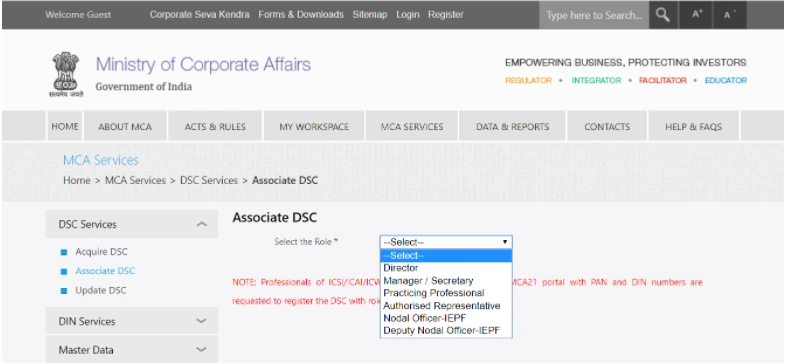
Selecting the wrong type may cause registration failure.
3. Enter Personal Details
- Fill in all details exactly as they appear on your DSC and MCA records
- DIN, PAN, or Membership Number
- Full Name
- Date of Birth
- Email ID
- Mobile Number
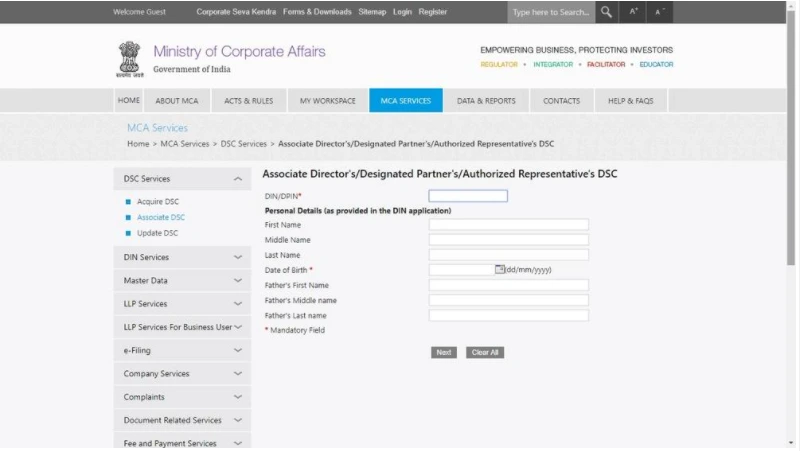
- Any mismatch between MCA records and your DSC details may lead to registration failure
- Update your details on MCA first if your name or other information has changed
4. Download and Set Up emSigner
- Download emSigner v3.0 or the latest version from the MCA portal.
- Install it on your computer by following the instructions.
- Launch emSigner and check that it recognizes your USB DSC token.
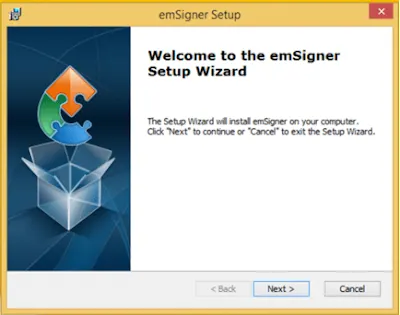
- Restart your computer if the token is not detected immediately.
5. Connect Your USB DSC Token
- Insert your USB token containing the DSC into your computer.
- Open emSigner and confirm that the certificate is active and valid.
- Verify that the certificate details match MCA records, including Name, DIN, and Email.
- If the token is not detected, try using a different USB port or reinstalling the token driver.
6. Register the DSC on the MCA Portal
- On MCA, click Register DSC.
The portal will automatically fetch your certificate details from the token. Check all details carefully, including Name, DIN or Membership Number, and certificate validity.
- Click Confirm or Register to associate the DSC.
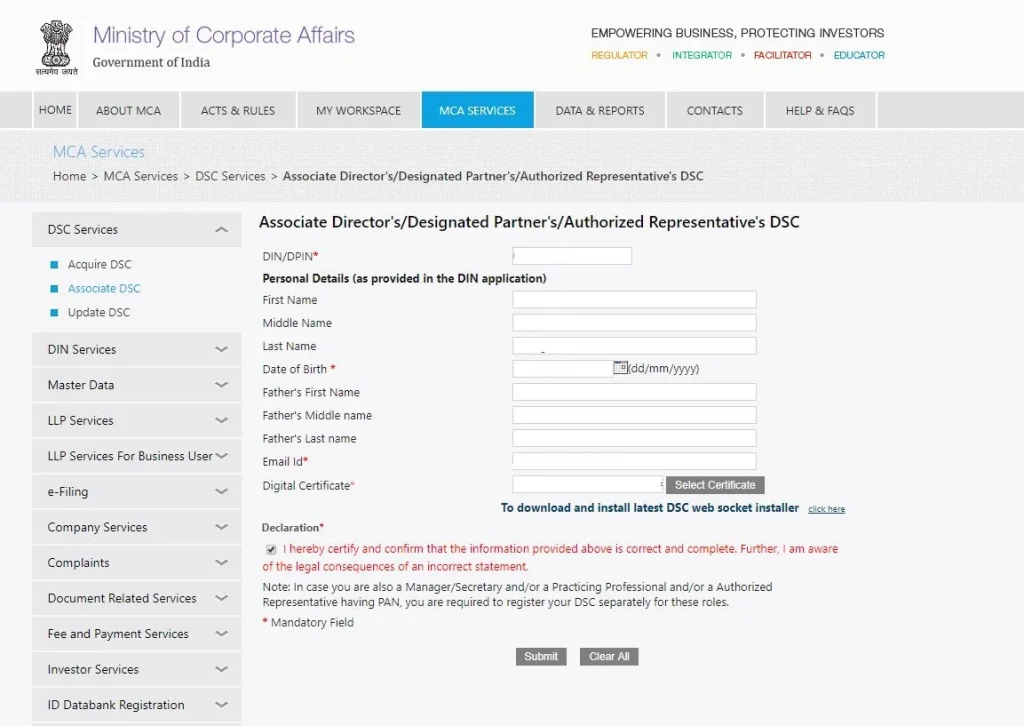
- The portal will display a message confirming successful DSC association.
Step 7: Verify DSC Registration
- Go to MCA Services, select DSC Services, and click View DSC.
- Enter your DIN or PAN to confirm that the DSC has been associated successfully.
- Once verified, your DSC is ready for filing all MCA forms.
Step 8: Use Your DSC for MCA Filings
- After registering your DSC, you can use it to sign and submit various MCA e-forms. Common examples include:
- DIR-3 KYC (Director KYC Update)
- SPICe+ (Company Incorporation)
- AOC-4 (Balance Sheet & Annual Accounts) and MGT-7 (Annual Filings)
- INC-22 (Registered Office Address)
- PAS-3 (Allotment of Shares)
- DIR-12 (Director Changes)
Note that some of these forms may have updated versions. MCA21 V3 automatically supports the latest versions of all e-forms, so you can file confidently without worrying about outdated formats.
- Keep your USB token connected while signing forms to ensure smooth authentication with emSigner.
Class 3 DSCs are usually valid for 1 or 2 years, depending on the issuing Certifying Authority. MCA21 V3 recommends renewing Class 3 DSCs for compliance with filings.
Confused about how to register your DSC on the MCA portal or worried about making mistakes? RegisterKaro can simplify the process for you. Our experts handle DSC login and guide you step by step so you can complete filings without stress.
When Do You Need to Re-Register Your DSC on MCA?
You may need to re-register your DSC on MCA21 V3 in several situations. Here are the most common scenarios:
- DSC Expiry: Your DSC is valid only for a limited period (usually 1–2 years). Once it expires, you must renew and re-register it on the MCA portal.
- Details Updated on MCA: If you update your name, email, DIN details, or membership number on MCA21 V3, you must re-register your DSC so the portal can match the new information.
- New DSC Issued: When you replace your old DSC, whether due to misplacement, token damage, or certification authority change, you need to associate the new DSC again.
- Token or Driver Reinstallation: If you reinstall token drivers, change your system, or format your computer, the portal may not recognize the DSC. Re-registration fixes this issue.
- MCA Portal Migration or System Updates: During major portal upgrades or form migrations, you may need to re-associate your DSC to sync it with the updated MCA system.
- DSC Not Working During Filings: If your DSC fails while signing forms (such as SPICe+, AOC-4, MGT-7, DIR-3 KYC), a quick re-registration often resolves the error.
Tip: Re-registering takes only a few minutes and helps prevent filing delays during peak compliance periods.
How to Check DSC Registration Status on the MCA Portal?
You can quickly verify whether your DSC is registered and active on MCA21 V3. This helps prevent failures during e-filing. Follow these simple steps to check whether DSC is registered on the MCA website:
- Log in to your MCA21 V3 account using your credentials.
- Go to MCA Services in the main menu.
- Select DSC Services.
- Click on View Associated DSC.
- Enter your DIN, PAN, or Membership Number as required.
- The system will display your DSC details, including:
- Certificate holder name
- Validity period
- Type of DSC
- Status (Active/Expired/Not Associated)
If the portal shows “No DSC found,” you need to register or re-register your DSC before filing any forms.
How to Update or Modify DSC on MCA Portal?
If you’ve renewed your DSC, changed your personal details, or received a new token, you must update it on the MCA portal. Here’s how to do it:
- Log in to MCA21 V3 and open DSC Services.
- Select Update DSC or Associate DSC on the MCA portal (depending on the option displayed).
- Choose the correct user category, such as Director, Partner, or Professional.
- Enter your updated details, including DIN, PAN, or Membership Number.
- Launch emSigner and connect your new or updated USB token.
- Allow the portal to detect your DSC certificate automatically.
- Verify the displayed details and click Confirm to complete the update.
- Recheck your DSC status under View Associated DSC to ensure the update is successful.
After renewals or personal detail changes, download DSC to ensure seamless filing and avoid any errors on the MCA portal.
Who Needs to Register a DSC?
You must register a DSC if you are:
- A Director using DIN for e-filings
- A Designated Partner in an LLP
- A Company Secretary or Manager
- A Practicing Professional (CA, CS, CMA)
- An Authorized Signatory for company filings
Confused about DSC updates or want expert help? RegisterKaro can guide you step by step and handle the entire DSC update process efficiently.
